Hi
I have an updated version of this blog (SSIS 2016) at my new blog with all the codes
Click here
I decided to write a small part of my SSIS projects about how to retrieve data from an Excel (97 – 2003) files. Basically this program will loop through a folder and its sub folders, find all the Excel files and within each Excel file it will loop though all its sheets, retrieve data from each sheet and inserting them to a destination table and finally moving the file to a backup folder after each process.
Criteria1. The file format must be in a *.xls format (Excel (97 – 2003))
2. All sheets in all Excel files must have the same data format (column/Field names, data type, etc..., all meta data must be the same)
3. A copy of one of the excel files that has been renamed to SampleExcelFile.xls
4. In the SampleExcelFile.xls file you must have one sheet with data (Headers included) as a sample and the sheet name must be named “Tab”. This will help us while we are developing and we always have a sample to show the customer what was implemented.
5. A Folder that will be the main folder of the ETL (in this case it will be named => C:\SSIS\LoopingThroughExcelFilesAndSheets)
6. Two other sub folders 1- “Sample” 2- “ToBeProcessed”
7. Copy the Excel Sample File in the “Sample Folder”
8. All headers must be on the first row of each excel sheet
9. No empty sheets are accepted, remove them all
Over all View

Defining some variables in the package
One of the most important part of a SSIS package are the variables. Because some variables will be defined in the Configuration File(s), so that you can use the package dynamically,
Example 1: The server name on your computer is different that the server name on production server so basically you can have the “server name variable” defined in the XML or table configuration so that it can be changes when deploying the package from one server to another.
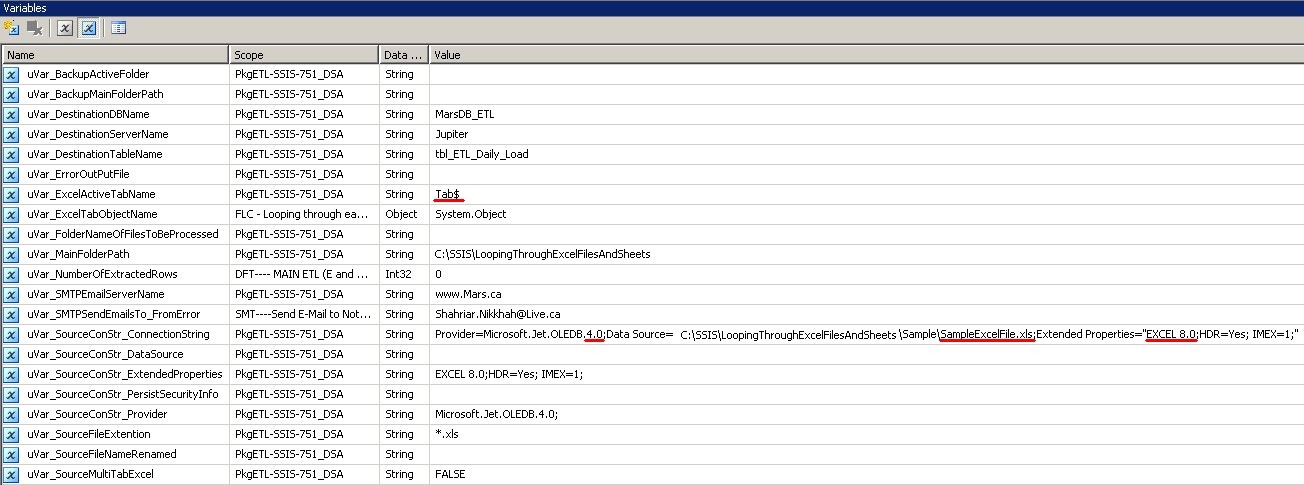
1. “uVar_BackupActiveFolder” Each time the package runs it makes a folder in the backup folder this folder will be known as the current backup folder which will be used to save the Excel backup files and/or maybe the Error text file.
2. “uVar_BackupMainFolderPath” Some customers prefer to have the backup folder in another server so basically we allow them to have a choice, by adding this variable (See the script section for more details). If this variable is empty it will make a default backup folder name (See backup scripts).
3. “uVar_DestinationDBName” The name of the Destination Database.
4. “uVar_DestinationServerName” The name of the Destination SQL Server.
5. “uVar_DestinationTableName” The name of the Destination Table in SQL Server.
6. “uVar_ErrorOutPutFile” This is the path and file name of the Error file, each time this path and file name changes so that we can keep a backup of each error log file.
7. “uVar_ExcelActiveTabName” The name of the active Excel Sheet name (the default value is “Tab$”) this is more needed in the design mode
8. “uVar_ExcelTabObjectName” A variable to keep the list of the sheet names of each Excel file
9. “uVar_FolderNameOfFilesToBeProcessed”
10. “uVar_MainFolderPath” This is the path where you will be having your main ETL; it can contain the Package, configuration files, backup, sample folder, ToBeProcessed folder and etc... (C:\SSIS\LoopingThroughExcelFilesAndSheets)
11. “uVar_NumberOfExtractedRows” A row counter that won’t be used in this example.
12. “uVar_SMTPEmailServerName” The SMTP name or IP address of it
(e.g. 1: Neptune e.g. 2: http://www.mars.com/ e.g. 3: 10.2.10.56)
13. “uVar_SMTPSendEmailsTo_FromError” A List of email address to email the error file. (Snikkhah@Live.ca ; YourEmail@YourBox.Com )
14. “uVar_SourceConStr_ConnectionString” The Excel connection string
E.g. Provider=Microsoft.Jet.OLEDB.4.0;Data Source = C:\SSIS\LoopingThroughExcelFilesAndSheets\Sample\SampleExcelFile.xls;Extended Properties="EXCEL 8.0;HDR=Yes; IMEX=1;"
15. “uVar_SourceConStr_DataSource” A variable that will have the file name and folder (See the first loop property).
16. “uVar_SourceConStr_ExtendedProperties” Variables that have a part of the connection string hard coded (e.g. EXCEL 8.0;HDR=Yes; IMEX=1;)
17. “uVar_SourceConStr_PersistSecurityInfo” Variables that have a part of the connection string hard coded
18. “uVar_SourceConStr_Provider” Variables that have a part of the connection string hard coded
19. “uVar_SourceFileExtention” This variable will define the file extension (e.g. *.xls).
20. “uVar_SourceFileNameRenamed” Before moving a file to the backup folder we will have to rename and set the right backup folder in this variable.
21. “uVar_SourceMultiTabExcel” Some Excel files have few sheets but only one of them contains the data so I am using this variable to set my package to pickup only on defined sheet name (FALSE = Single sheet , TRUE = Multiple sheet with the same data format). In this example it must be set to “TRUE”
Defining Connection Manager
We need 4 connections, in this example I will not be setting the error and email section you can check my blog for that.
1. Excel connection manager

2. FF_DST----Error Output file for debugging

3. SQLServerDestinationConnection

4. SMTP Connection Manager For Error messages
Adding Object (controls) in the Control FlowNow we can add the objects as seen in the “Over all View”
1. SCR---- Making the "ToBeProcessed Folder"
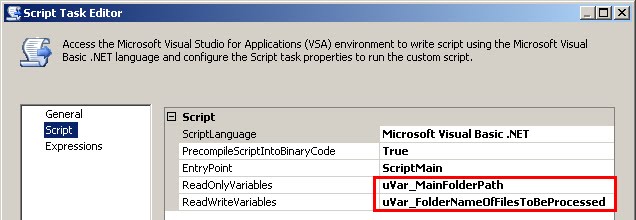

In this section the customer can redirect the source folder by entering the folder full path name in the “uVar_FolderNameOfFilesToBeProcessed” variable, if not the system will pick up the default name “ToBeProcessed”.
2. SCR---- Making the backup folder string from BackupFolderName Variable (Dynamic Backup folder yyyy-mm-dd-hh-mm-ss)


Same settings again the customer can define the backup folder in the variable “uVar_BackupMainFolderPath”, if not the Package will pick the default folder name “BackUpFolder”. The other thing that happens in this script is that the current backup folder name string is been made,
e.g. C:\SSIS\LoopingThroughExcelFilesAndSheets\BackUp\2010-04\2010-04-10-141000.
3. FSYS----Creating the backup folder from BackupFolderName

This will make the backup folder from the “uVar_BackupActiveFolder” which will be C:\SSIS\LoopingThroughExcelFilesAndSheets\BackUp\2010-04\2010-04-10-141000.
4. SCR--- Make the correct path and file name for the Error Text File


What I am doing is making a file name string that has, the date and time, ETL Name, etc... This will be needed it an error accurse
5. SQL----Truncate the destination Table
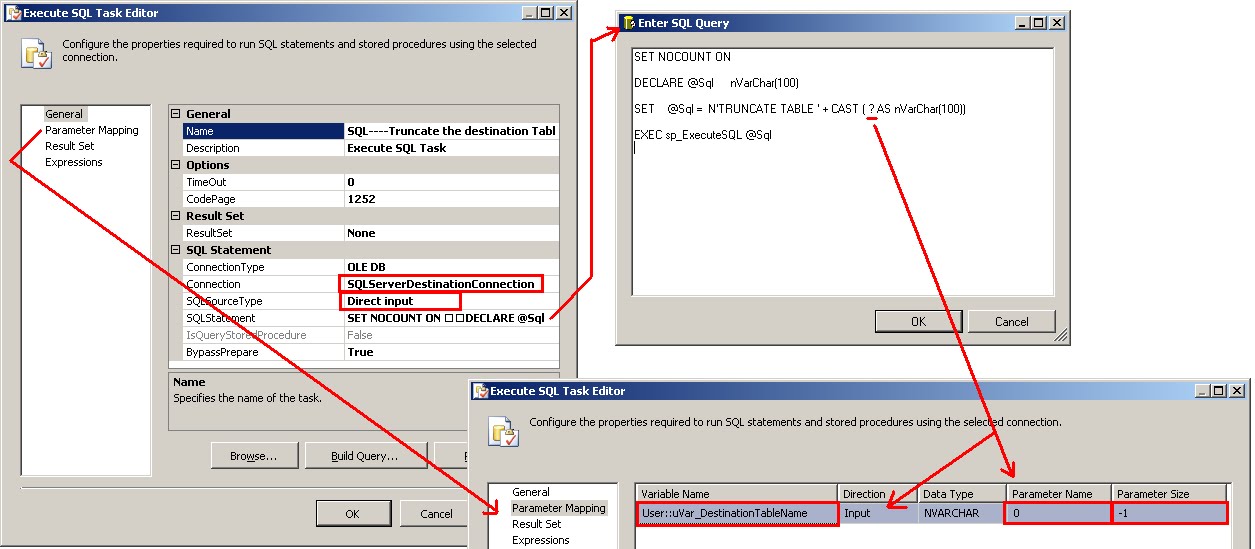
6. FLC - Looping through each Excel file - Finding the Data Source

By using the variable “uVar_FolderNameOfFilesToBeProcessed” the first loop will be looping through the folder and sub folder to find *.xls files “name and folder” and each file folder and name will be saved in the “uVar_SourceConStr_DataSource” e.g. C:\SSIS\LoopingThroughExcelFilesAndSheets\ToBeProcessed\AnyExcelFileName.xls
7. SCR - Make the connection string for each file

The settings are...
ReadOnlyVariable= uVar_SourceConStr_Provider, uVar_SourceConStr_DataSource, uVar_SourceConStr_PersistSecurityInfo, uVar_SourceConStr_ExtendedProperties, uVar_ExcelTabObjectName
ReadWriteVariable= uVar_SourceConStr_ConnectionString

As you know that each “Excel Connection manager” object can only point to one Excel file, so each time (On each First Loop) we have to set the “Excel Connection manager” to point to the current Excel file (“uVar_SourceConStr_DataSource”).
8. SCR - Find Tabs in Source file (tabs Only Not "Named Ranged")

Now we have the connection string in the “uVar_SourceConStr_ConnectionString” variable, by using that and this script we will be looping though each Sheet and finding that names of them, and finally saving them in the “uVar_ExcelTabObjectName” variable which is a SSIS Object variable.
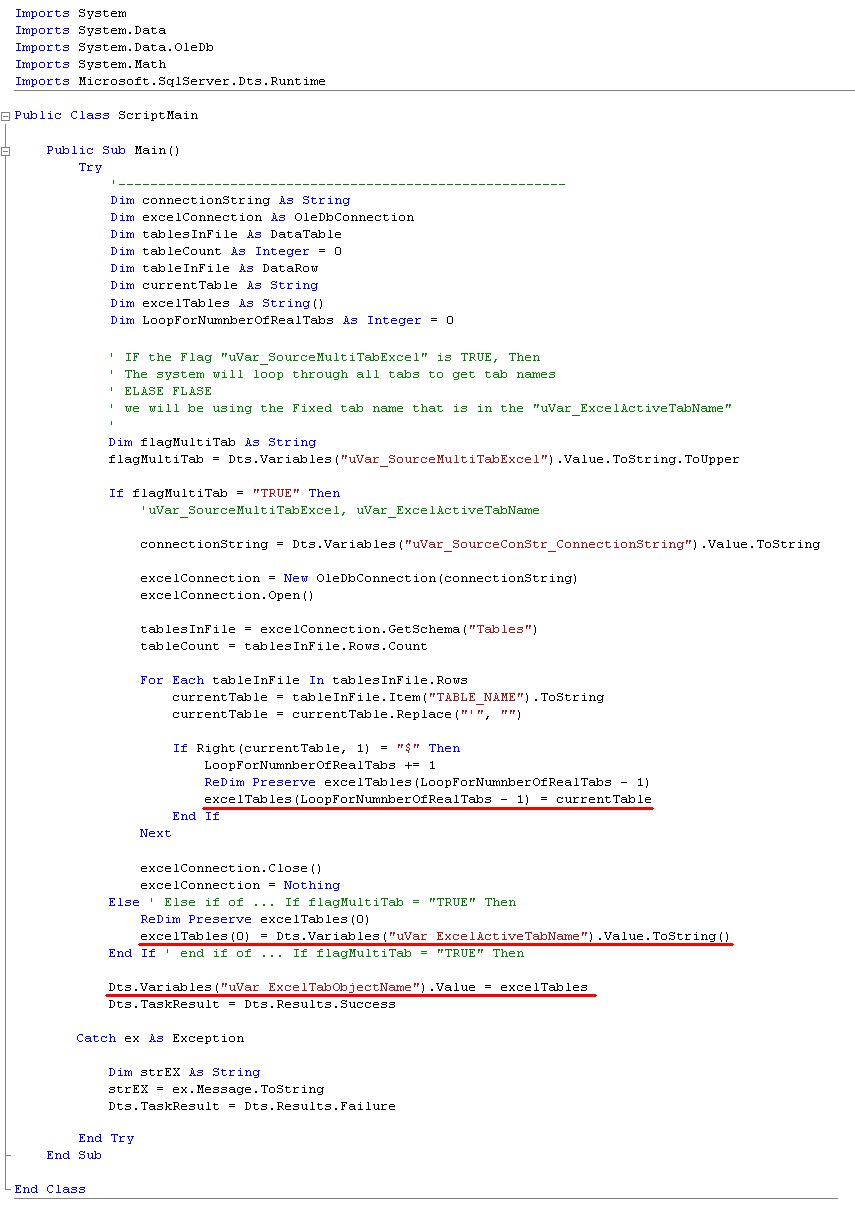
Remember the variable “uVar_SourceMultiTabExcel” we use it if the Excel file sheet has multiple sheets but only one can be used, if the this is the scenario that you have your customer must not change the sheet name and the sheet name must be hard coded in the variable “uVar_ExcelActiveTabName” (e.g. Ticket Details$)
9. FLC - Looping through each Excel file TAB

The second loop will loop through the “uVar_ExcelTabObjectName” variable which contains the list of sheet names of the current Excel file.
10. DFT---- MAIN ETL (E and T Only)
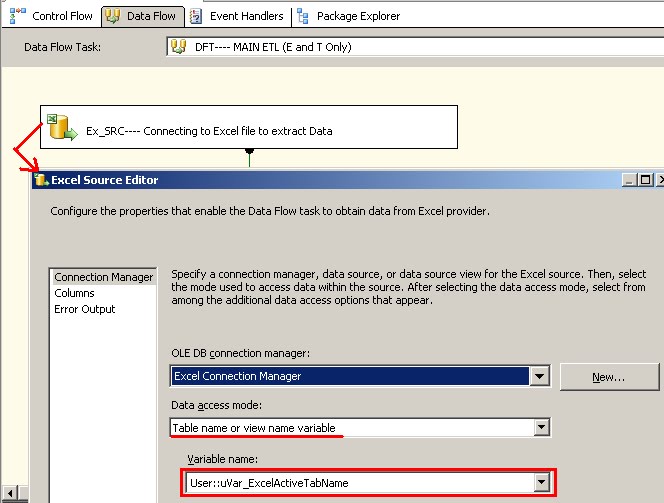
11. Ex_SRC---- Connecting to Excel file to extract Data
How is this section working? The sheet name is in the “uVar_ExcelActiveTabName” which is set to the this object and its Connection is using the “Excel Connection Manager” which is set to the current Excel file by the variable “uVar_SourceConStr_ConnectionString” (That it’s been set to DelayValidation = TRUE)
12. OLE_DST----SQL SERVER Destination table

Same story as the previous step except it’s been set for the destination table in SQL server
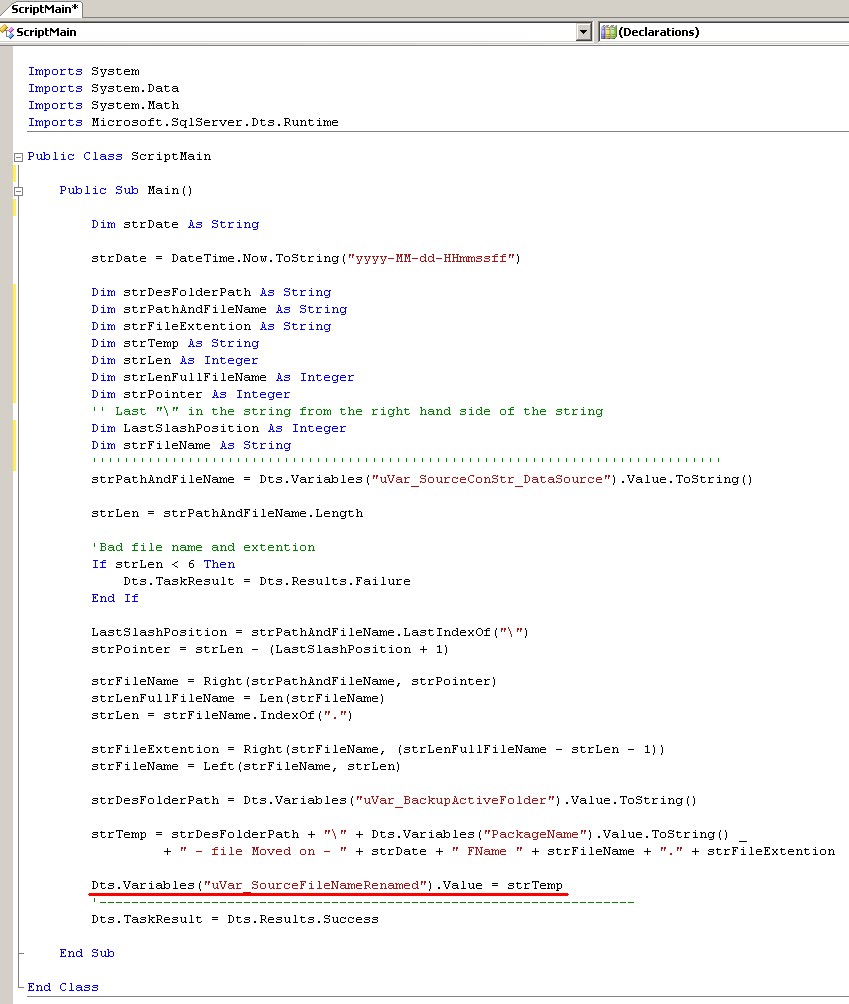
13. SCR--- Rename file names with the format of "yyyy-mm-dd-hhmmssff"
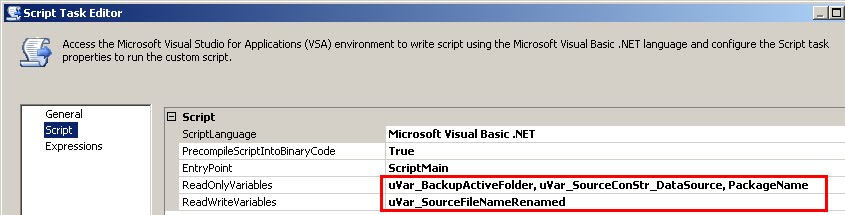
Again making a string that will rename the current file that has been processed and save it in the current backup folder
14. FSYS---- Moving processed files to the "Backup Active Folder"

Moving the processed file to that final backup folder
15. End of the first Loop, Loop for next file
Testing Scenarios
Before testing make sure that you have set the variables according to the snap shot of the variables that I have and check the “Criteria”.
Scenario 1:
Excel files with multiple sheets (all sheet s have the same data format)
1- Set the Variable “uVar_SourceMultiTabExcel” = TRUE
2- Copy Excel files to the ToBeProcessed folder
3- Run the package
4- Check the destination table
5- Check the backup folder and find the current date time folder and see if the file have been moved from the ToBeProcessed folder to the new current backup folder
Scenario 2:
Excel files with single data sheets (the data sheet must be hard coded)
1- In the sample file do not rename the data sheet (do to rename it to Tab$, keep it as it is because this will be the fixed sheet name that will be in the Excel file)
2- Set the Variable “uVar_SourceMultiTabExcel” = False
3- Name the “uVar_ExcelActiveTabName” as the sheet name agreed with the customer e.g. “Sales$”
4- Copy Excel files to the ToBeProcessed folder
5- Run the package
6- Check the destination table
7- Check the backup folder and find the current date time folder and see if the file have been moved from the ToBeProcessed folder to the new current backup folder


